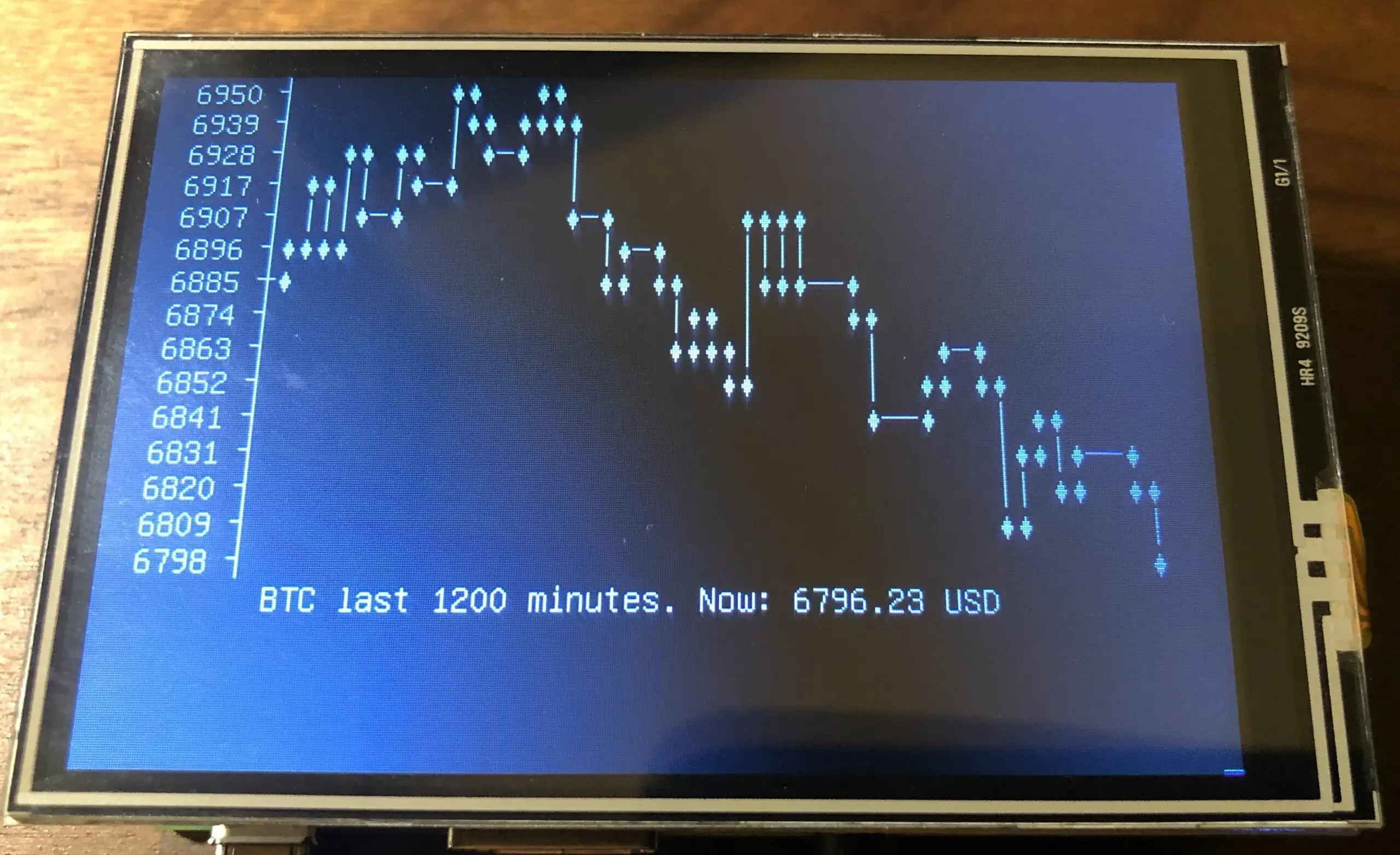
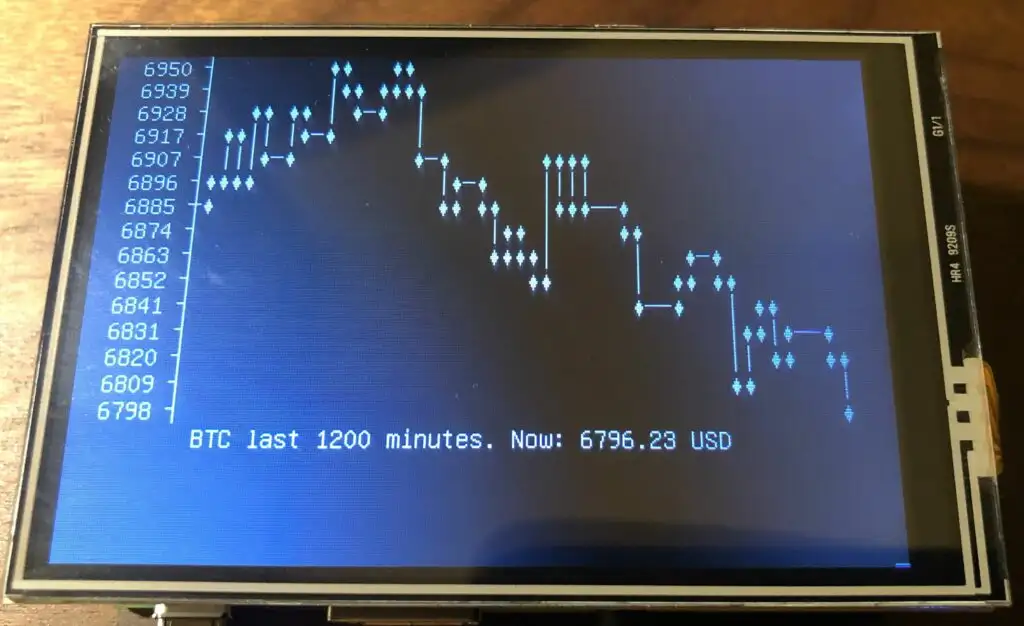
We will use the project [Bitcoin chart for the terminal][1] as command line util. For a list of supported cryptocurrencies see [coins][2].
Shopping list
You need obviously a raspberry pi, ideally with WIFI build in if you don ’t like cables
- Raspberry pi 1, single core, will require an Ethernet cable
- Raspberry pi 2 , dual core, will require an Ethernet cable
- Raspberry pi 3 or 4, a bit a shame to use this amount of power for that task, but has built in WIFI

Raspberry Pi LCD Display Module 3.5inch 320X480 TFT

Raspberry Pi LCD Display Module 3.5inch 320X480 TFT


Installing the Software
Your SD-card needs to contain the software. You can take the long road by building the SD-card image yourself or use the already prepared SD-Card image:
Download SD-Card image – Version 1.0: SOON
SHA-256: xxxxxxxxxxx
Write the SD-Card image to your SD Card
You need to write the downloaded SD card image (the img.gz-file) to your SD card (16 GB minimum) – you can use the very easy tool Balena Etcher for this: https://www.balena.io/etcher/ .. it ’s available for Win, Mac & Linux.
Insert the SD card and connect the power plug.
- Make sure to connect the raspberry with a LAN cable to the internet at this point.
- Make sure that your laptop and the raspberry are on the same local network.
BUILDING THE SD CARD
[Raspbian][3] is THE official operating system for all models of the Raspberry Pi.
Raspbian is a Debian-based (32 bit) computer operating system for Raspberry Pi. There are several versions of Raspbian including Raspbian Buster and Raspbian Stretch. Since 2015 it has been officially provided by the Raspberry Pi Foundation as the primary operating system for the family of Raspberry Pi single-board computers.
We now use the Raspberry Pi Imager for an easy way to install Raspbian and other operating systems to an SD card ready to use with your Raspberry Pi:
- [Raspberry Pi Imager for Windows][4]
- [Raspberry Pi Imager for macOS][5]
- [Raspberry Pi Imager for Ubuntu][6]
Choose Raspbian other, then lite. When finished boot the image and connect the pi to WIFI
bash sudo raspi-config
- Under localization options, set the proper keyboard layout
- Under network, connect to your WIFI
- Under interfaces, activate SSH
sudo apt install npm
sudo npm install bitcoin-chart-cli -g```
## Install LCD drivers
My screen is the http://www.lcdwiki.com/3.5inch_RPi_Display
```bash # install LCD driver
sudo apt update
sudo apt upgrade
sudo apt install git
rm -r LCD-show
git clone https://github.com/goodtft/LCD-show.git
sudo chmod -R 755 LCD-show
cd LCD-show/
sudo apt-mark hold raspberrypi-bootloader
sudo ./LCD35-show # PI will reboot now automatically```
## Run the script after autologin
Add to your .bashrc, you can also add -c ETH with <a rel="noreferrer noopener" href="https://github.com/madnight/bitcoin-chart-cli/blob/HEAD/COINS.md" target="_blank">one of the supported coins</a>,
```vi .bashrc```
add at the end of file
```bash # -d, --days <n> number of days the chart will go back
# --hours <n> number of hours the chart will go back
# --mins <n> number of minutes the chart will go back
# -w, --width <n> max terminal chart width
# -h, --height <n> max terminal chart height
# -c, --coin <string> specify the coin e.g. ETH
# -m, --currency <string> specify the trading pair currency (Default: USD)
# --disable-legend disable legend text
watch -n60 -t -c bitcoin-chart-cli --mins 1200 -w 50```
## Set the PI to autologin
```bash # set Raspi to boot up automatically with user pi (for the LCD)
# https://www.raspberrypi.org/forums/viewtopic.php?t=21632
sudo raspi-config nonint do_boot_behaviour B2
sudo bash -c "echo '[Service]' >> /etc/systemd/system/[email protected]/autologin.conf"
sudo bash -c "echo 'ExecStart=' >> /etc/systemd/system/[email protected]/autologin.conf"
sudo bash -c "echo 'ExecStart=-/sbin/agetty --autologin pi --noclear %I 38400 linux' >> /etc/systemd/system/[email protected]/autologin.conf"```
and reboot
```bash sudo reboot```<figure class="wp-block-image size-large">
## SSH login do not work anymore?
After that you can not log anymore with SSH to the PI user, to be able to login, add a USB keyboard and type
```bash sudo raspi-config nonint do_boot_behaviour B1```
Run again the following to enable auto-login
```bash sudo raspi-config nonint do_boot_behaviour B2```
[1]: https://github.com/madnight/bitcoin-chart-cli
[2]: https://github.com/madnight/bitcoin-chart-cli/blob/HEAD/COINS.md
[3]: /tag/Raspbian/
[4]: https://downloads.raspberrypi.org/imager/imager.exe
[5]: https://downloads.raspberrypi.org/imager/imager.dmg
[6]: https://downloads.raspberrypi.org/imager/imager_amd64.deb